
Resolver guide to multi-factor authentication (MFA)
Why is MFA needed?
Multi-factor authentication adds an extra layer of security to your Resolver account and ensures that you are the only person that has access to it. Your first point of authentication is your password. For your second form of authentication, you can choose between using your email or an authenticator app.
If your chosen method is email, we will send you a six digit one-time passcode during the login process which you will have to enter in the field provided. The one-time passcode will be valid for 10 minutes. Do not share this code with anyone but Resolver.
If you login using Google or Facebook, you should configure multi-factor authentication for your account using that service.
Where can I set my preferences?
After logging in, visit the account details page.
1. Using an Authenticator app
Multi-factor authentication is becoming more common with websites and applications that deal with personal data. As a result, a lot of users prefer to use an authenticator app on their phone which keeps all of those accounts in one place.
There are various apps that you can use, but the ones that we recommend are:
- Google Authenticator
- Microsoft Authenticator
- Twilio Authy
They are available to download from the App Store (if you are using an iPhone) or Google Play Store (if you are using an Android device).
2. How to set up and use an authenticator app for multi-factor authentication (MFA)
Step 1: Get your QR Code
After you choose the authenticator app as your preferred MFA option, you will be provided a QR code and a manual code string. If you are using Resolver on your desktop device, keep the screen open. If you are using the mobile version, copy the manual code string.
Step 2: Add your Resolver account to your app
Open your authenticator app and follow the specific steps below:
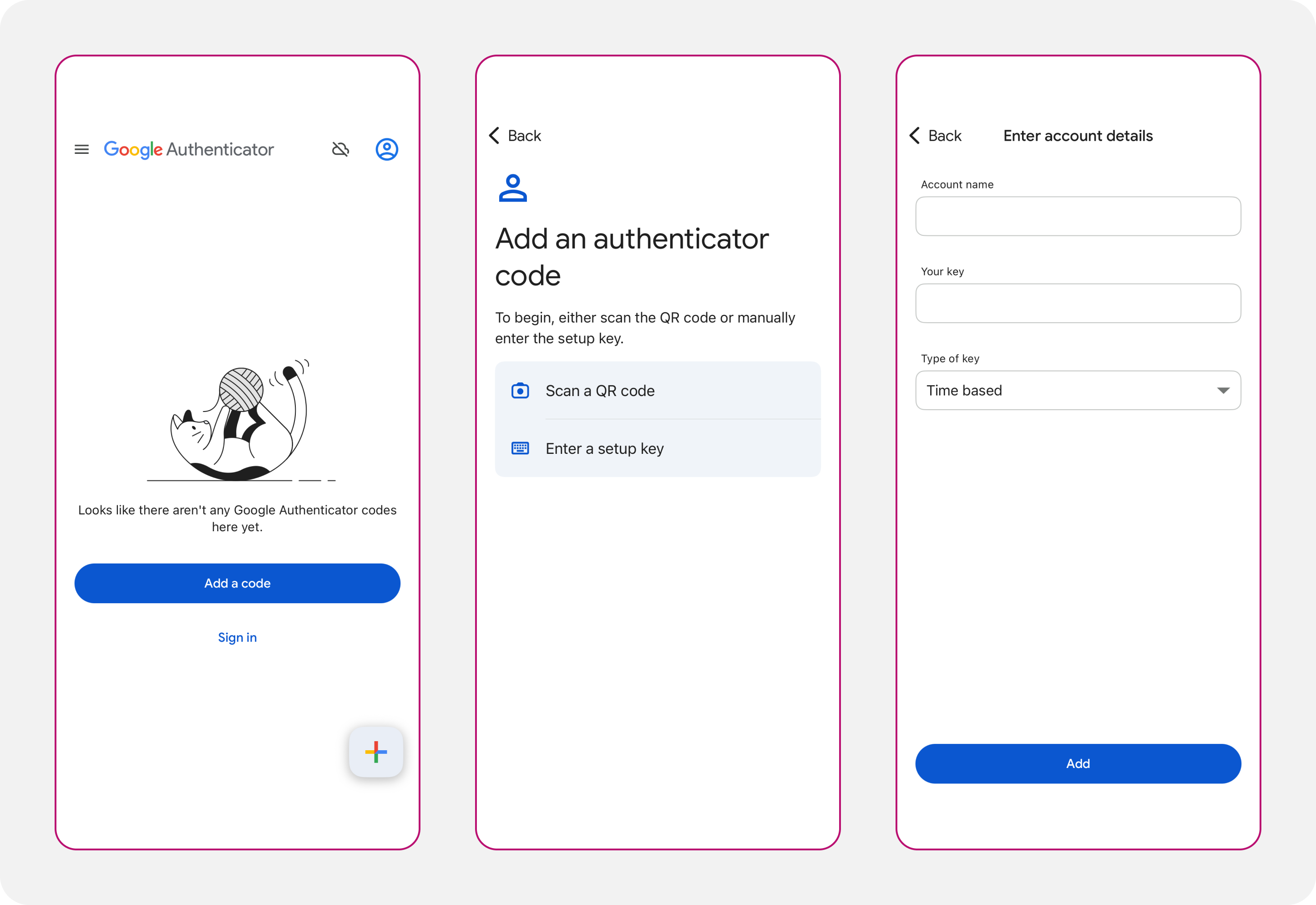
Option A: Google Authenticator
- Open the app and tap the + icon in the bottom right or “Add a code button” (this will only appear if you don’t have any other apps or websites connected already. You do not need to connect your Google account to use the app.
- Select "Scan a QR code" if you can scan using your camera, otherwise select "Enter a setup key".
- Point your phone's camera at the QR code on your computer screen or insert the manual code provided by us.
- Resolver should now appear in your list of apps.
- Do not delete the app after set up as you will need it for future sign in.
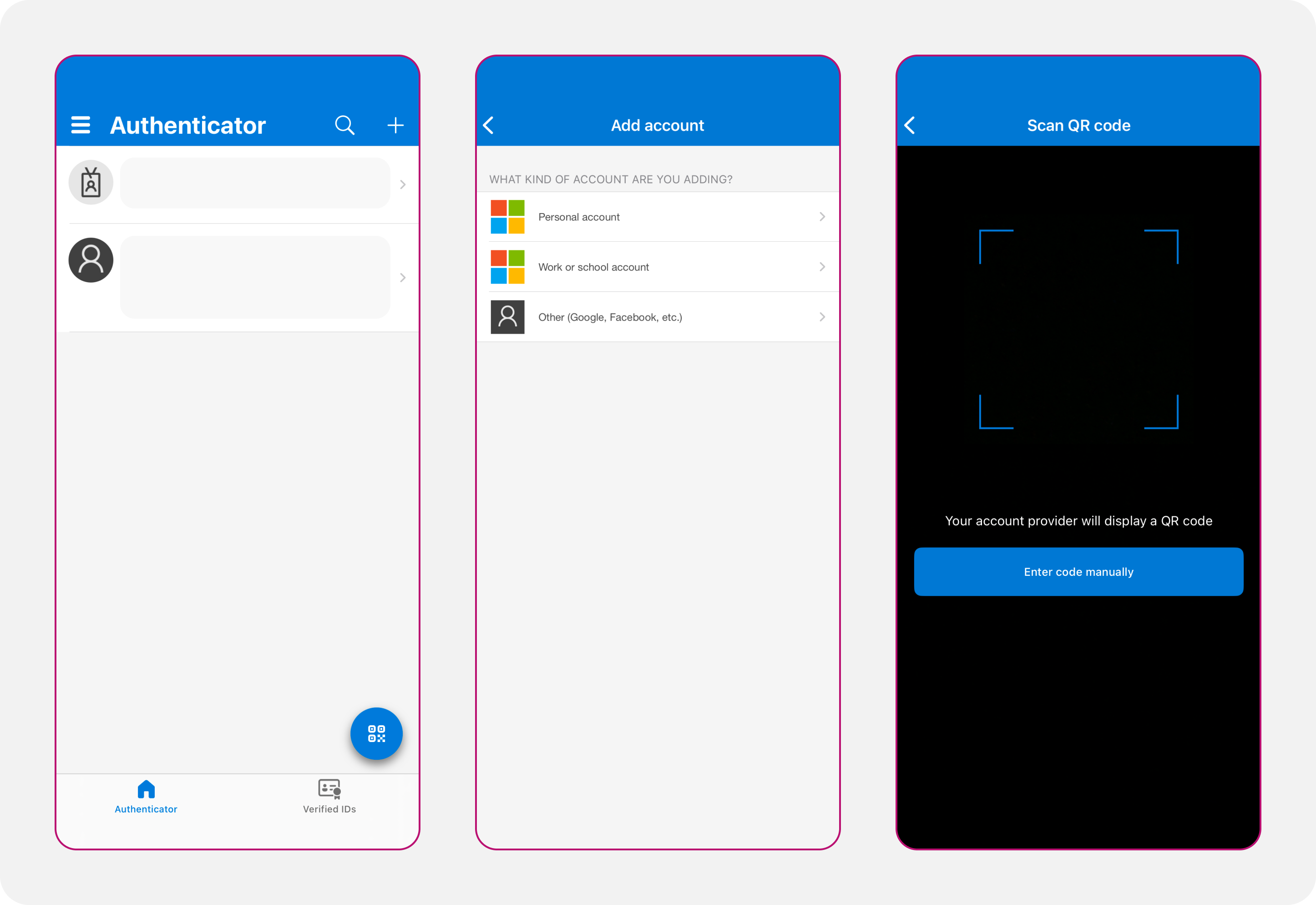
Option B: Microsoft Authenticator
- Open the app and tap the + icon at the top right or "Add a code button". You do not need to connect your Microsoft account to use the app.
- From the options provided, select "Other (Google, Facebook, etc.)"
- Point your phone's camera at the QR code on your computer screen or click "Enter code manually if you are unable to use your camera".
- Resolver should now appear in your list of apps.
- Do not delete the app as you will need it for future sign in.
Join our newsletter
Get the latest on consumer rights, practical guides, and money saving offers. We may also introduce you to carefully selected legal partners, as well as free ways to make a claim, if you’re looking to take a claim forward. We’re not a regulated claims management company, but we aim to point you in the right direction where helpful.

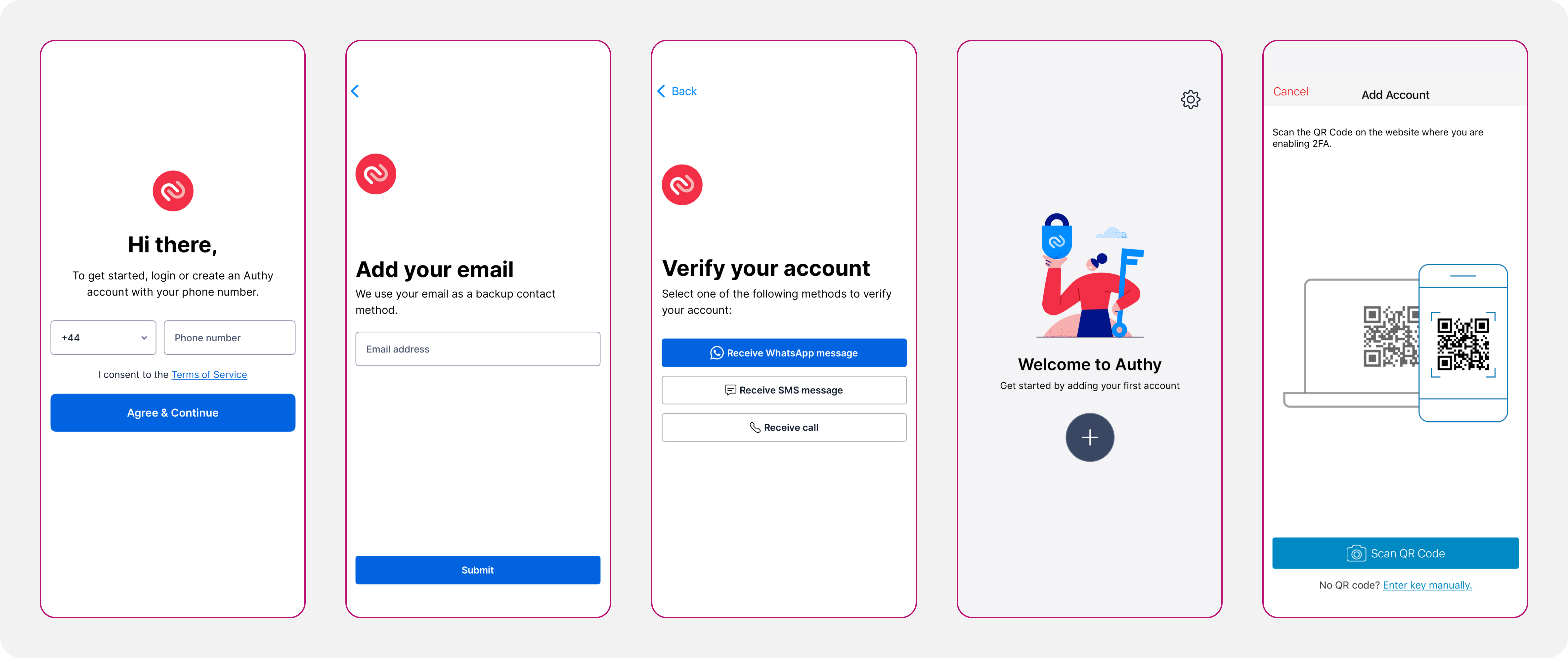
Option C: Twilio Authy
- Type in your phone number.
- Type in your email address.
- Verify your account with one of the options provided.
- Once your account is set up you will see a welcome screen. Click on the + icon to add Resolver.
- Select "Scan a QR code" if you can scan using your camera, otherwise select "Enter key manually".
- Point your phone's camera at the QR code on your computer screen or insert the manual code provided by us.
- Resolver should now appear in your list of apps.
Step 3: Confirm set up
Now that Resolver appears in your chosen app, follow the steps below to confirm set up.
- Copy the six digit code that your chosen app will provide for you. Be quick as the code refreshes every 30 seconds.
- Go back to the Resolver set up screen and insert the code in the field provided.
- Click "Confirm".
- If the code you provided is valid, you will receive a confirmation message.
3. Troubleshooting Common Issues
"Invalid Code" or "Code Incorrect" Error
This is the most common issue and is usually caused by the time on your phone not matching the server time.
- Android (Google Auth): Go to app Settings > Time correction for codes > Sync now
- iPhone: Go to your phone's Settings > General > Date & Time and ensure Set Automatically is turned ON.
I lost my phone / got a new phone
- If you backed up your app: If you used Microsoft Authenticator or Authy with cloud backups turned on, simply log into the app on your new phone to restore your accounts.
- If you have neither: Please contact Resolver support for identity verification to restore access to your account.
If the issue you are experiencing another type of issue with your authenticator app, please review the troubleshooting guide for each of three options provided above:
Join our newsletter
Get the latest on consumer rights, practical guides, and money saving offers. We may also introduce you to carefully selected legal partners, as well as free ways to make a claim, if you’re looking to take a claim forward. We’re not a regulated claims management company, but we aim to point you in the right direction where helpful.